
Two ways to get there
Start from the main league screen—the one with ROSTER, MATCHUP, STANDINGS, and SCHEDULE across the top. Use either path below; both open the same Franchise Image Studio.
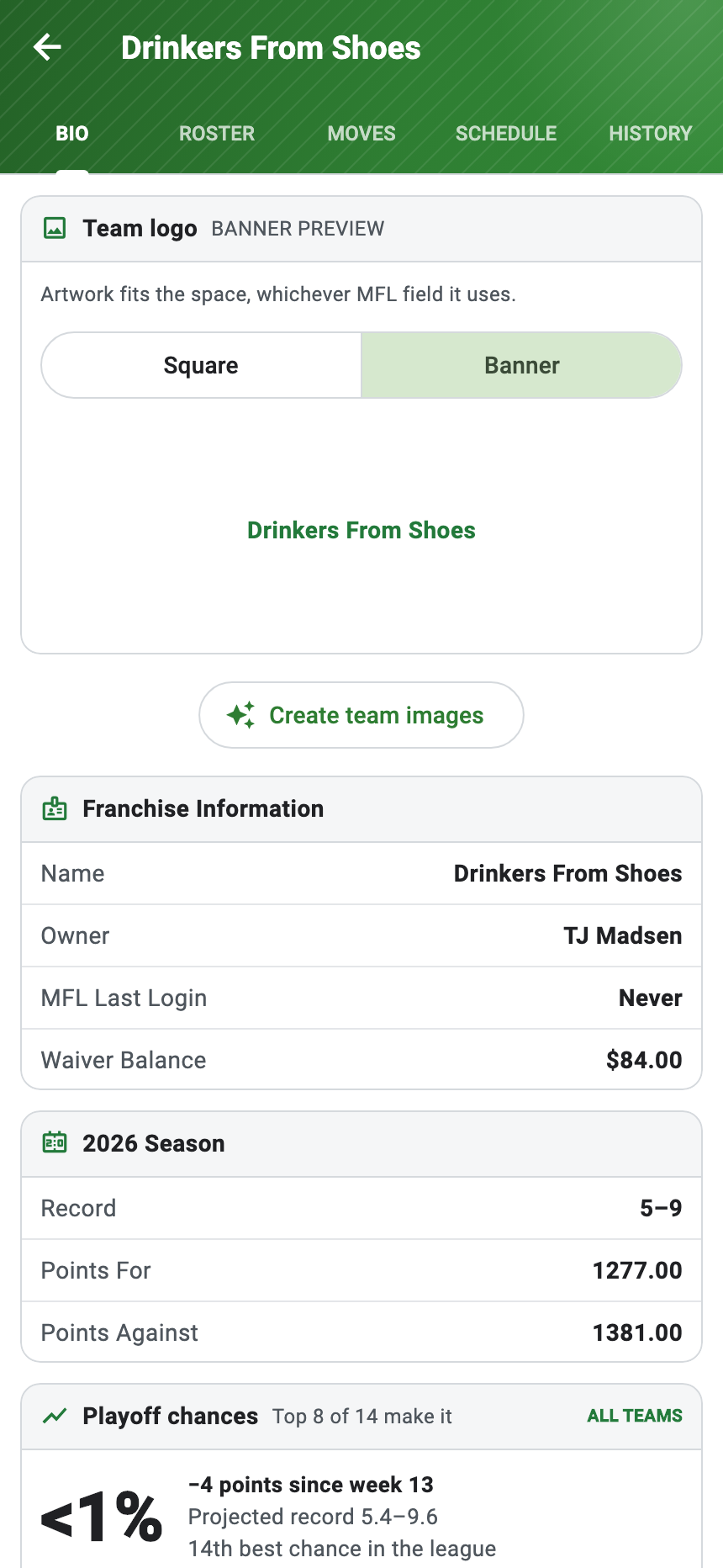
STANDINGS → your team → BIO → Create team images
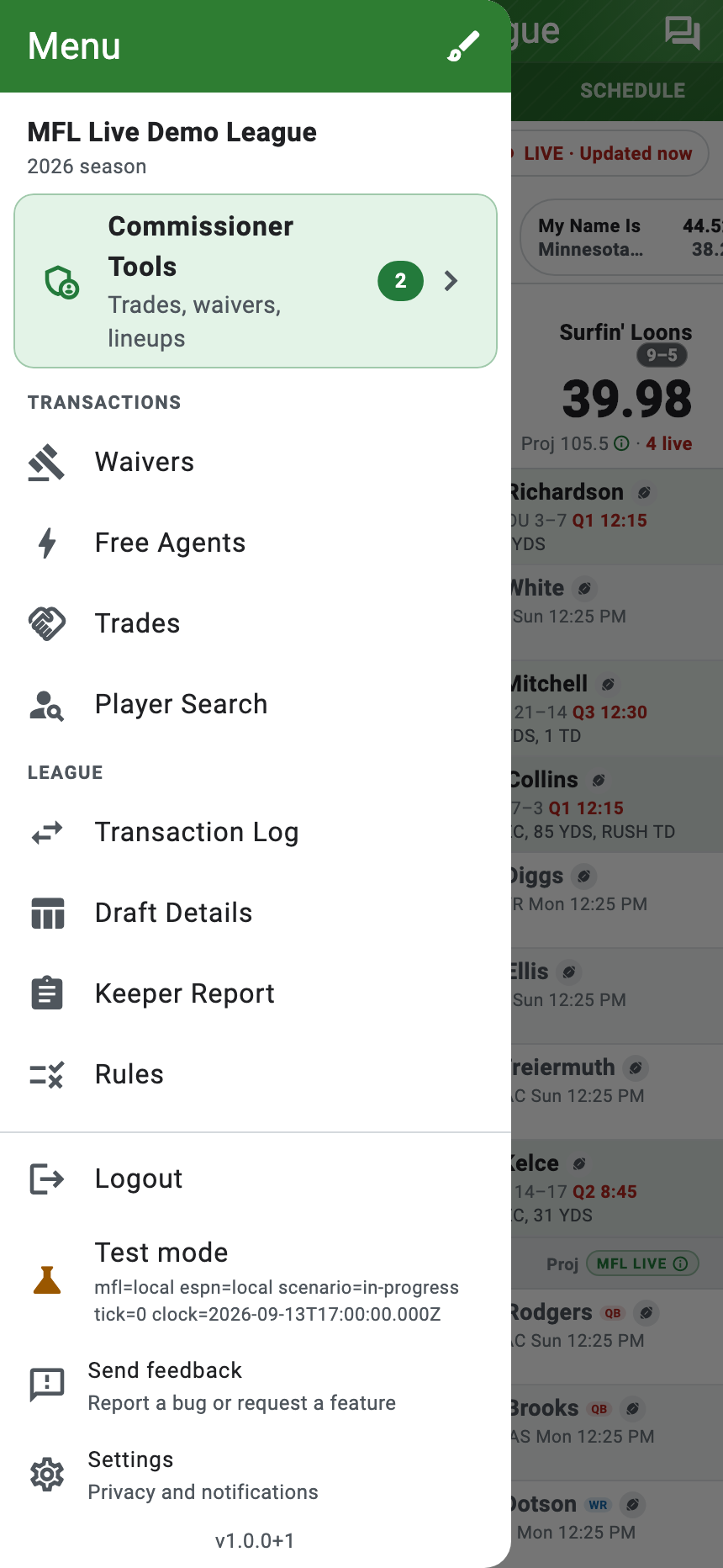
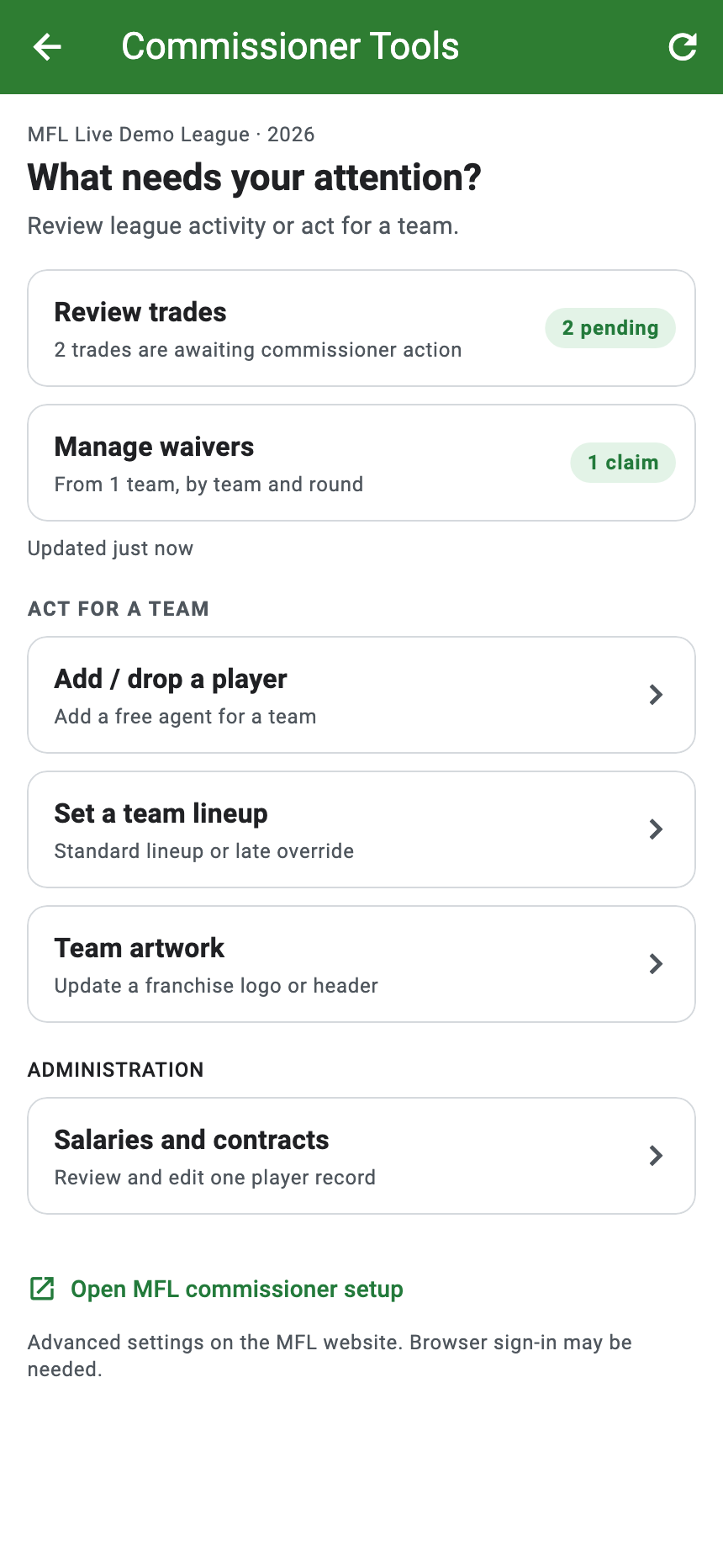
Menu ☰ → Commissioner Tools → Team artwork → choose a team
-
Find Image Studio
If you manage your own team
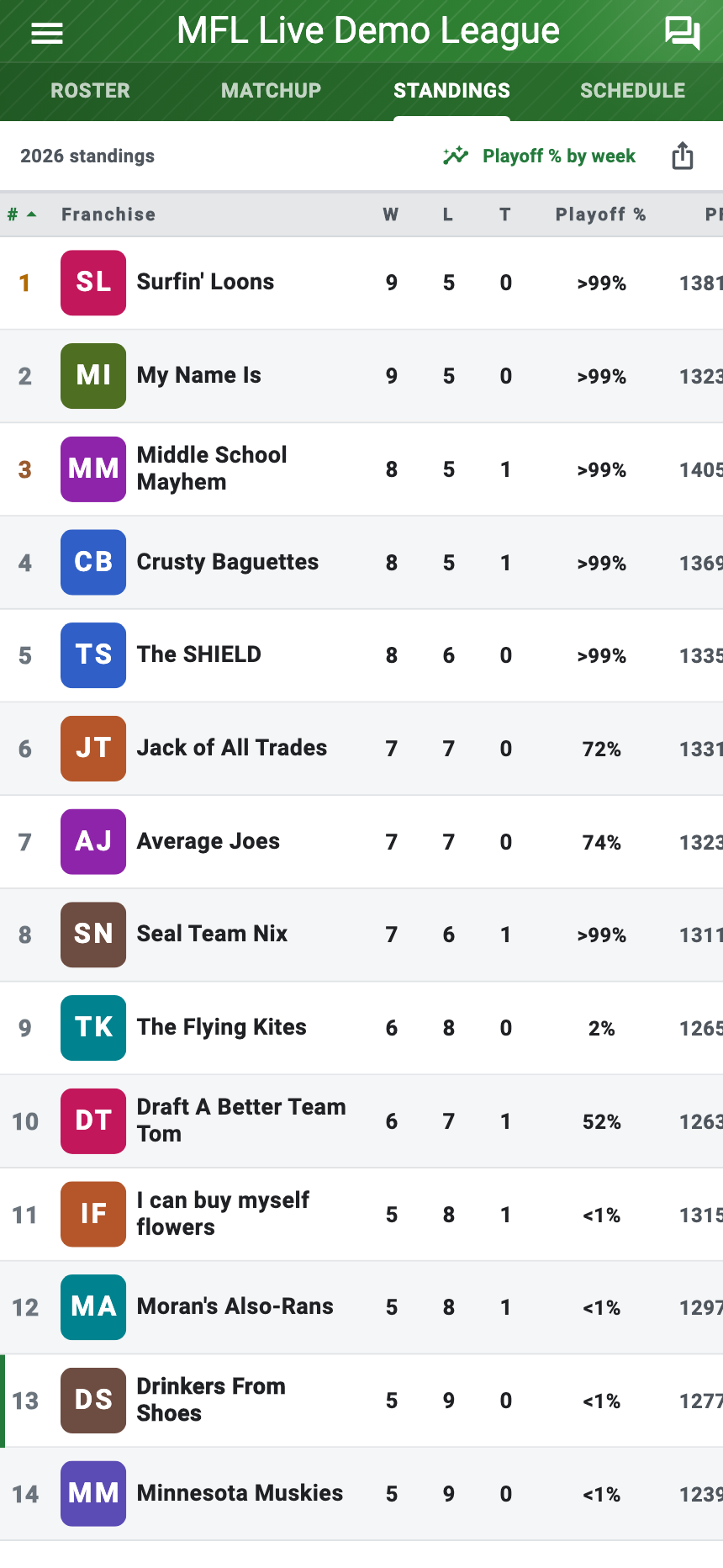
Tap STANDINGS at the top of the main league screen. Find your team—the green bar on the left marks it—and tap the team row. This opens the team’s page; that is what MFL Live calls a franchise page.
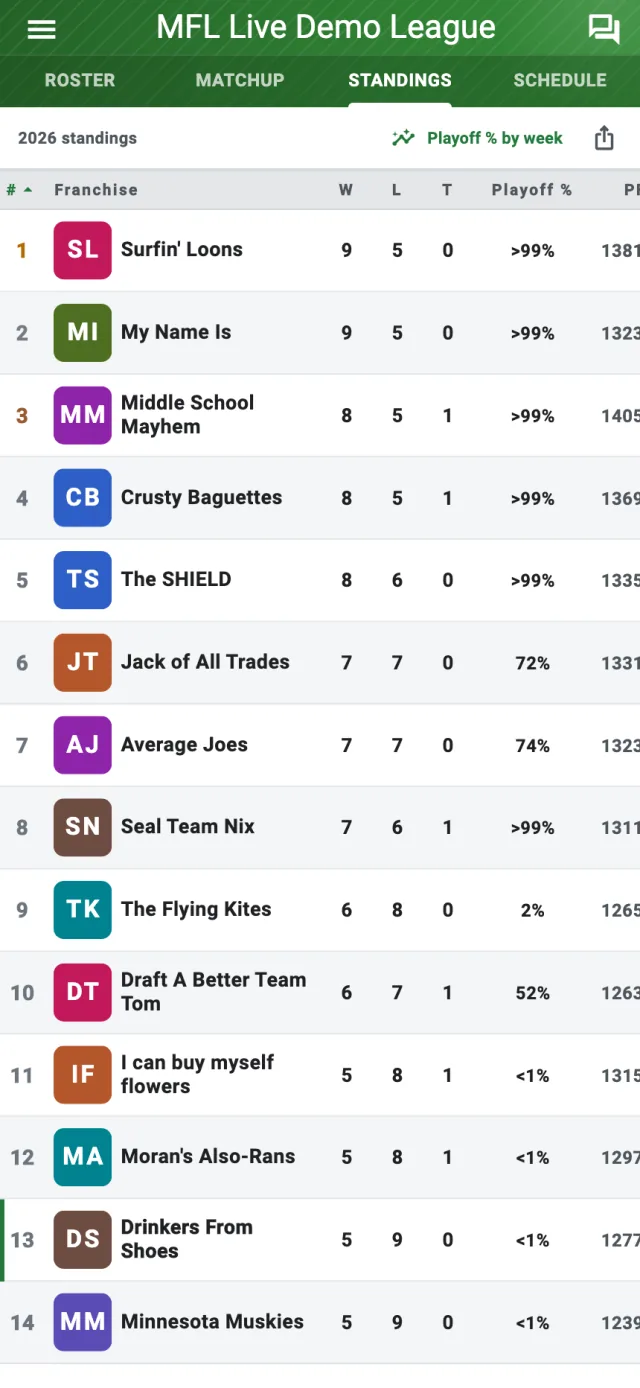
From the main league screen, open STANDINGS and tap your team. 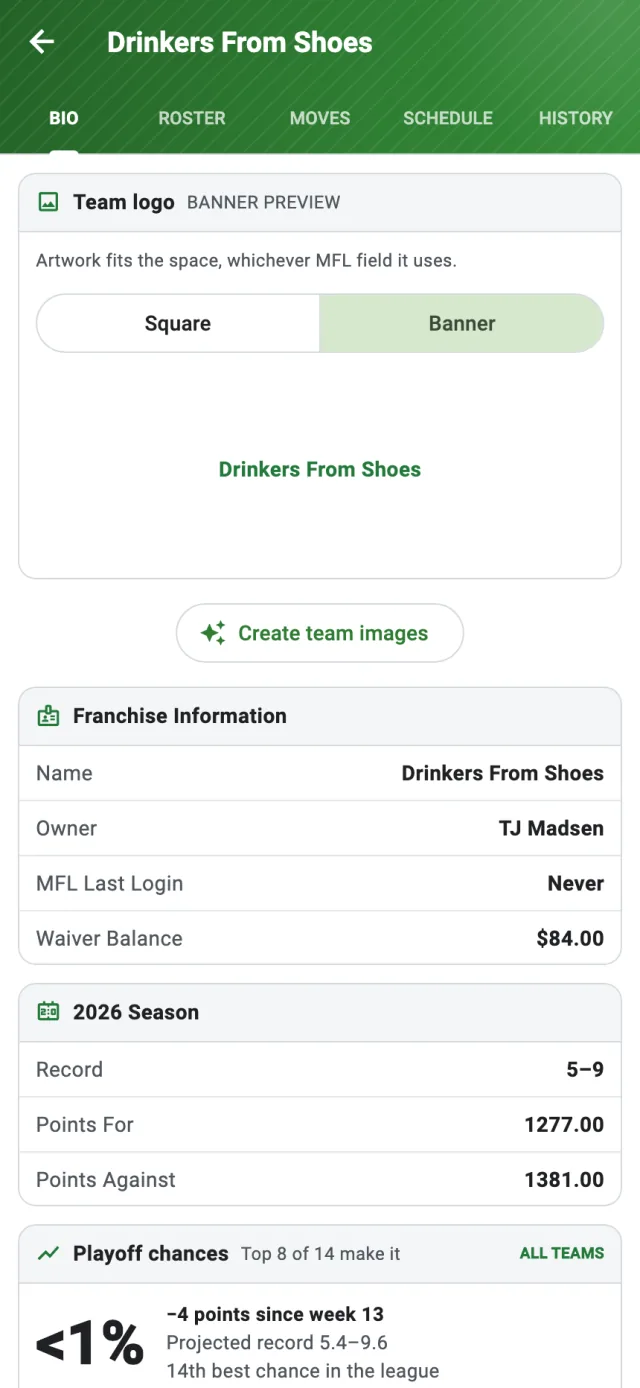
On the team page, choose BIO, then tap Create team images. If you are already looking at any team’s page, skip the STANDINGS step: tap BIO, then Create team images. You can edit only a team you own unless you are a commissioner.
If you are the commissioner
Tap the three-line Menu icon in the upper-left corner of the main league screen, then tap Commissioner Tools. Under ACT FOR A TEAM, tap Team artwork and choose the team you want to update.
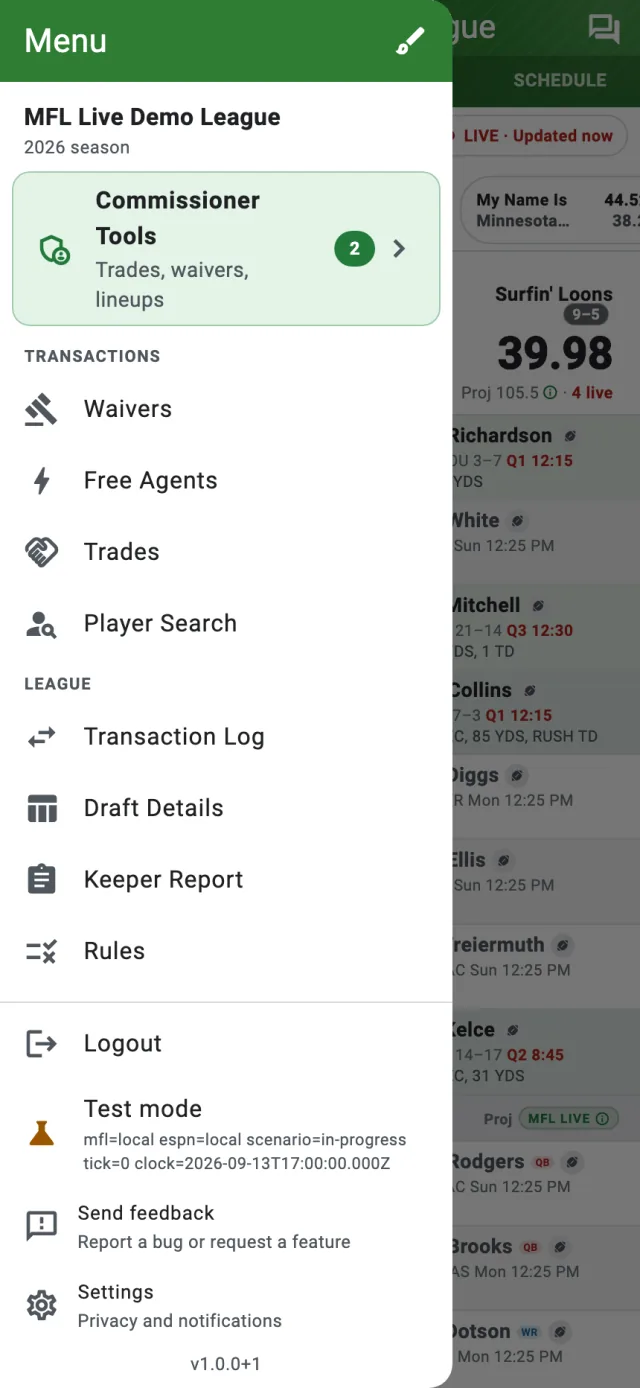
Open Menu, then tap Commissioner Tools. 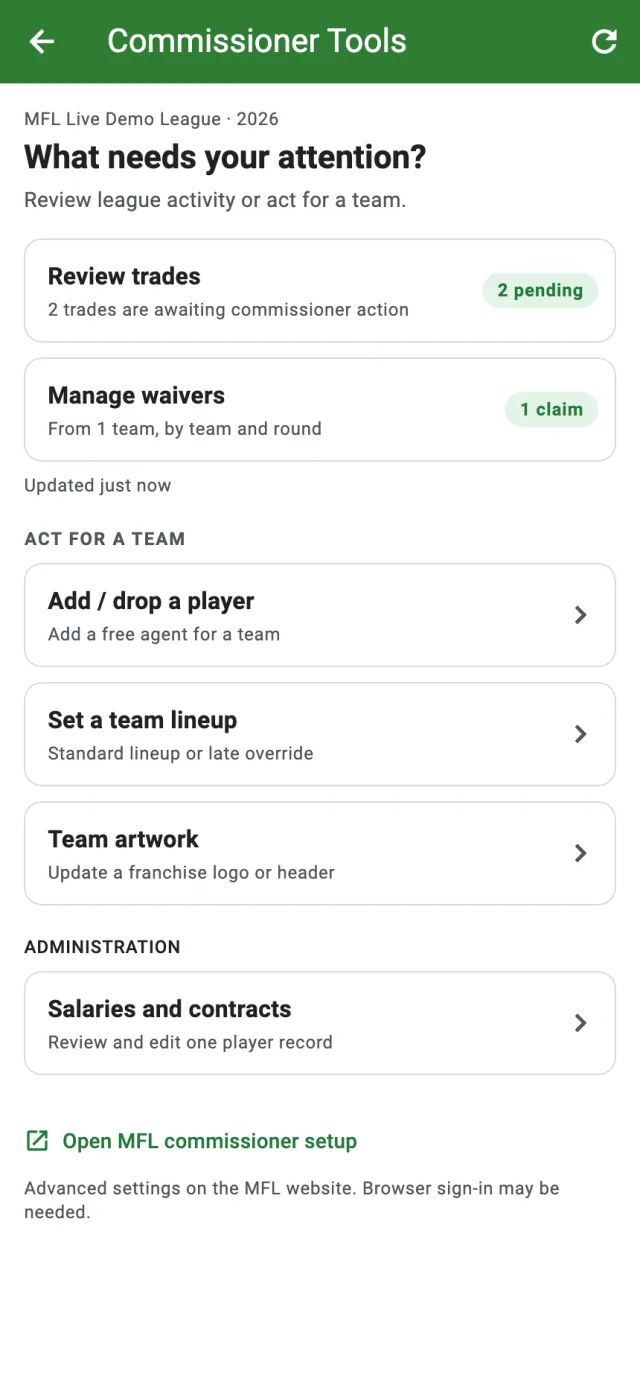
Team artwork is in the ACT FOR A TEAM section. -
Choose what you want to make
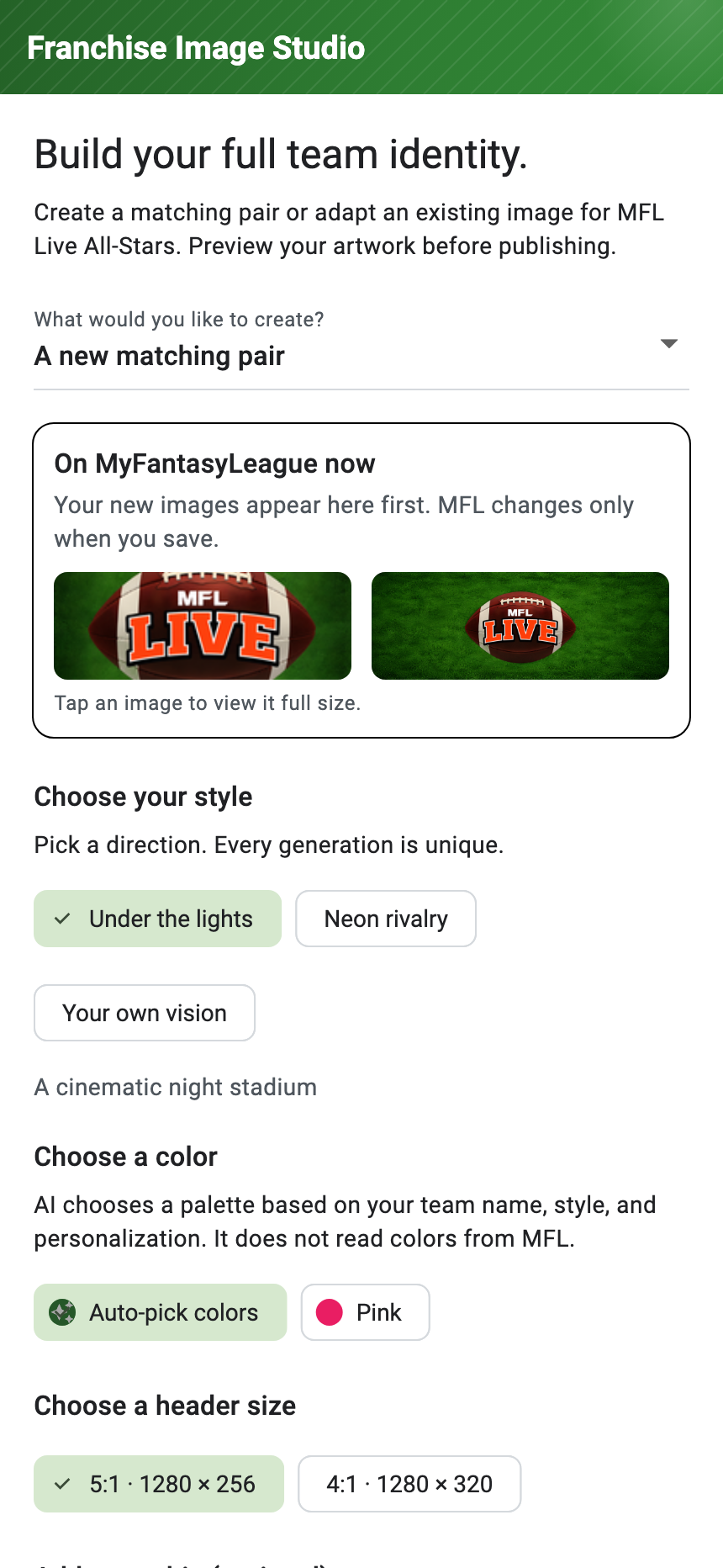
Open the first menu in Franchise Image Studio and pick one option:
- A new matching pair makes a square team icon and a wide franchise header together.
- Square from existing artwork turns an existing image into a square icon.
- Banner from existing artwork turns an existing image into a wide header.
Your current MFL icon and header appear near the top, so you can compare them before changing anything.
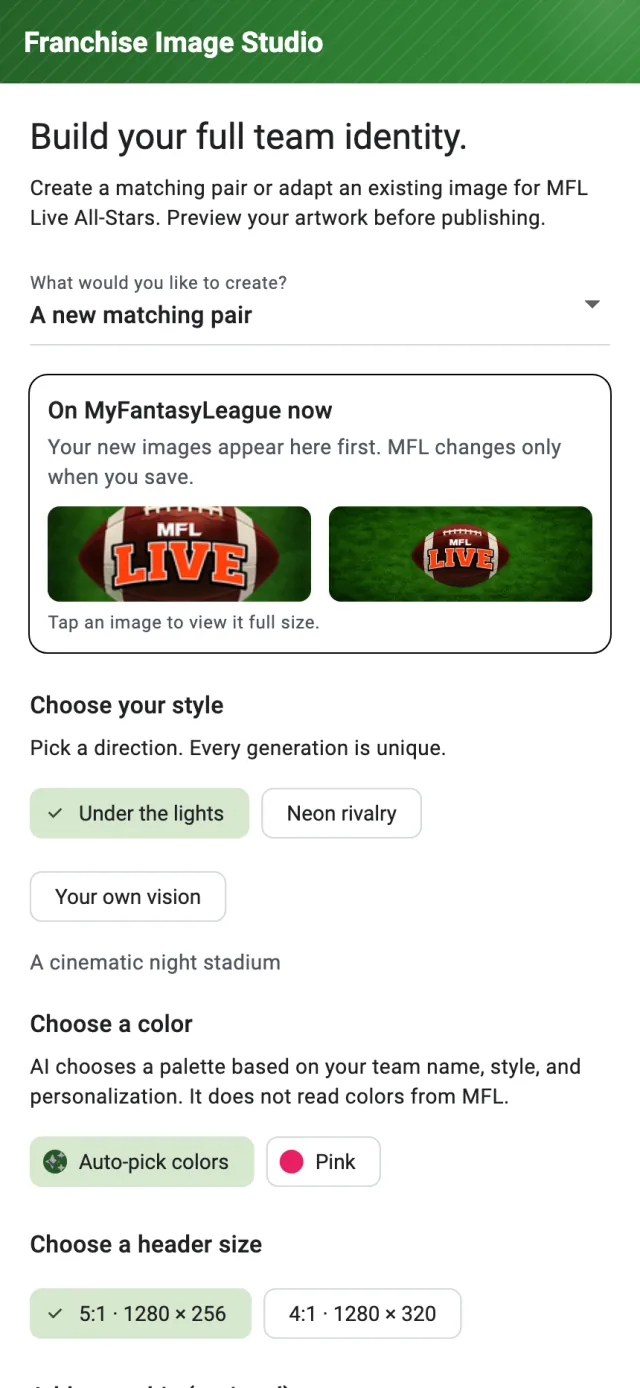
Choose what to create at the top of Image Studio. -
Choose the look and generate
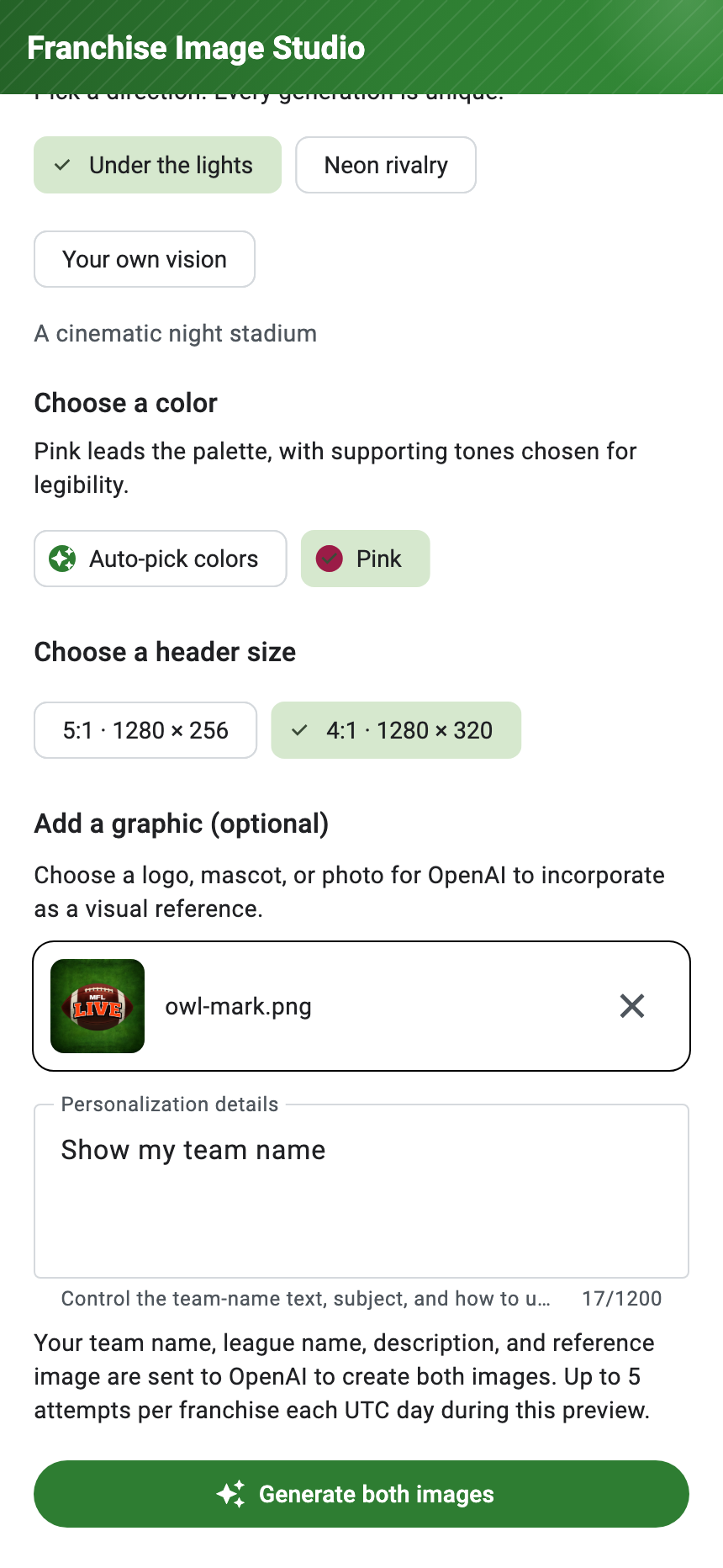
For a new pair, choose a style, color direction, and header size. Under Personalization details, add a short instruction such as “Show my team name” or “Put the mascot on the left.” You can also choose an existing logo, mascot, or photo as a visual reference.
Tap Generate both images (or the single-image generate button). Image generation can take a few minutes, so keep MFL Live open while it works.
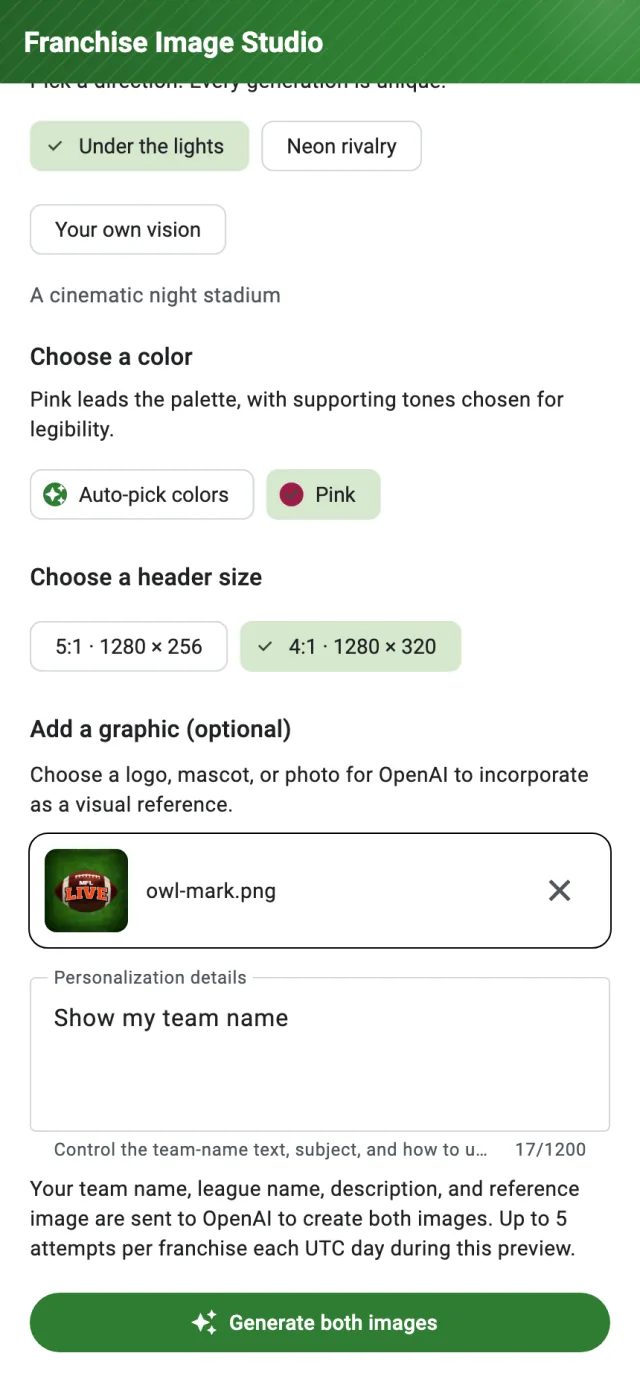
Work down the page, then tap Generate both images. -
Review and save
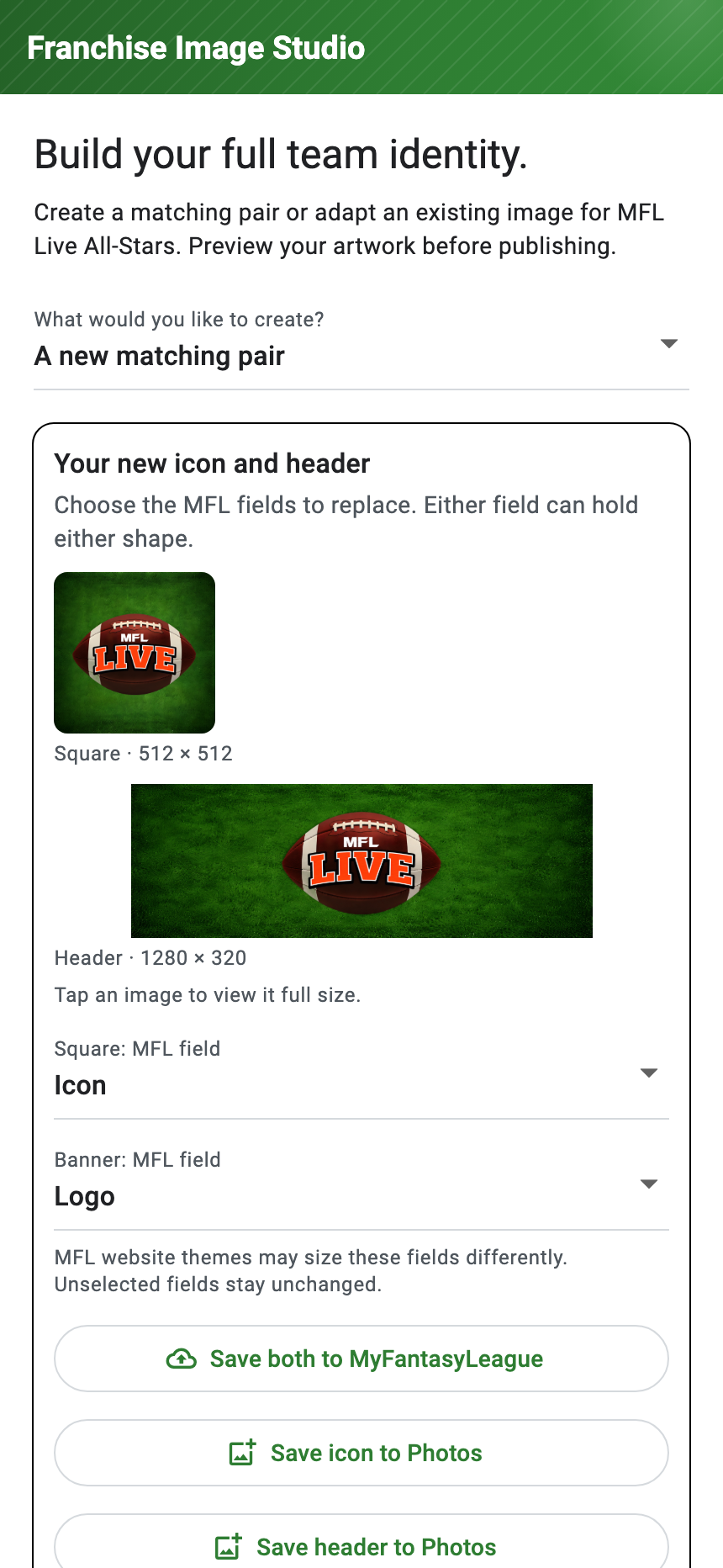
Review both previews. If the result is not right, change your choices and generate again. Recent results appear under Your generations, so you can return to one you liked.
Use Save icon to Photos or Save header to Photos if you want a copy on your device.
To use the result for your live franchise, tap Save both to MyFantasyLeague. Check the destinations shown in the confirmation, then confirm the update. The app verifies the new MFL artwork before it returns you to the franchise page.
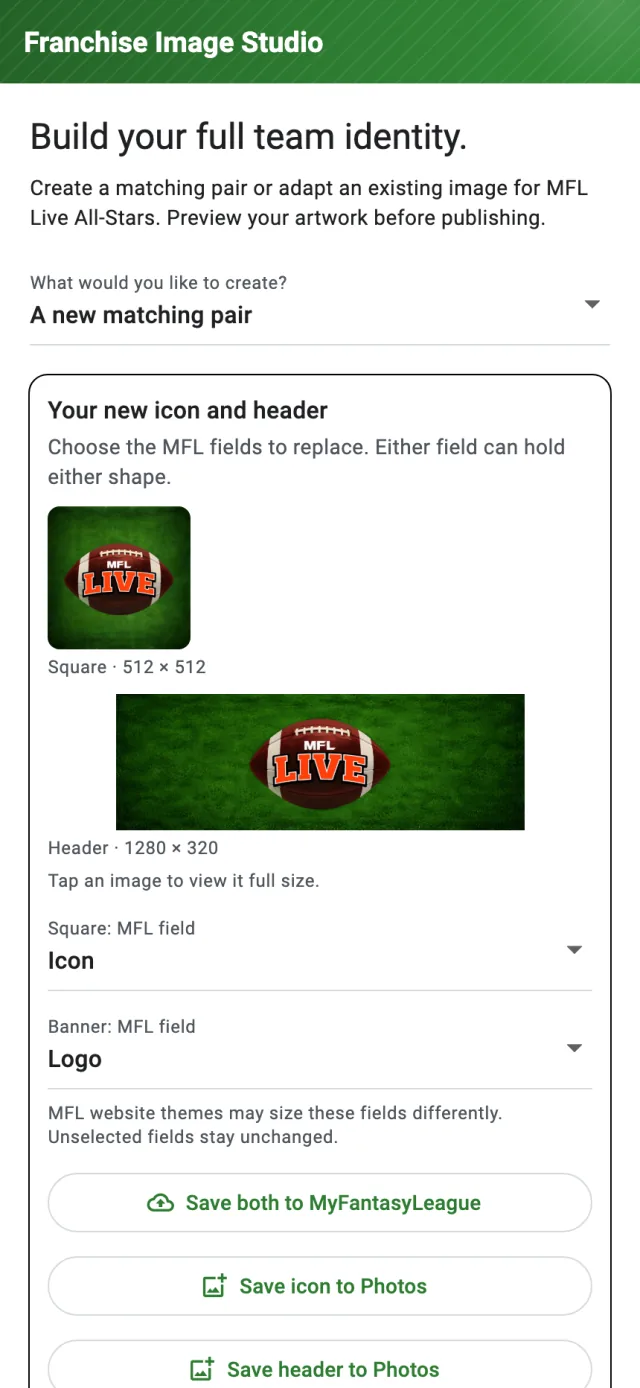
The generated pair is only a preview until you choose Save both to MyFantasyLeague.
If you do not see the button
- Make sure you are viewing your own franchise, or that you are a commissioner in the league you currently have open.
- Try the Commissioner Tools path if you need to create artwork for another team.
- Update MFL Live to the latest version available for your device.
Still stuck?
Send us a support request.
Tell us which step you reached and what you saw. We will reply by email.
Contact MFL Live support